Signal Needs for Recording and Observation
A recorded classroom keeps four sources at once: teacher wide shot, teacher close-up, student views and courseware. The courseware path should come straight from the lectern PC's HDMI output, which is clearer than filming the screen. Training observation is messier: a machine tool or instrument may output only analog, a microscope eyepiece is an optical image, and a document camera is a USB image, so several source types must converge in one system. Keep the chain layers simple, or the operating burden shifts to the teacher during the lesson.
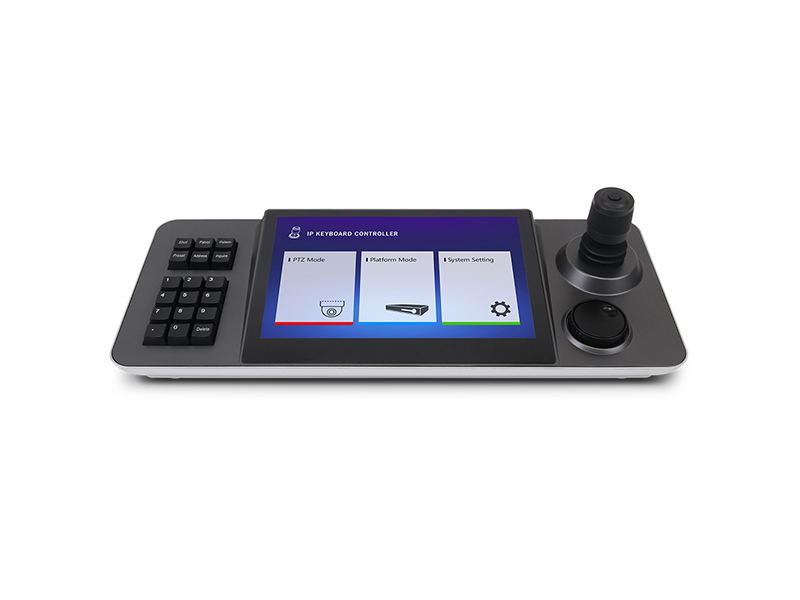
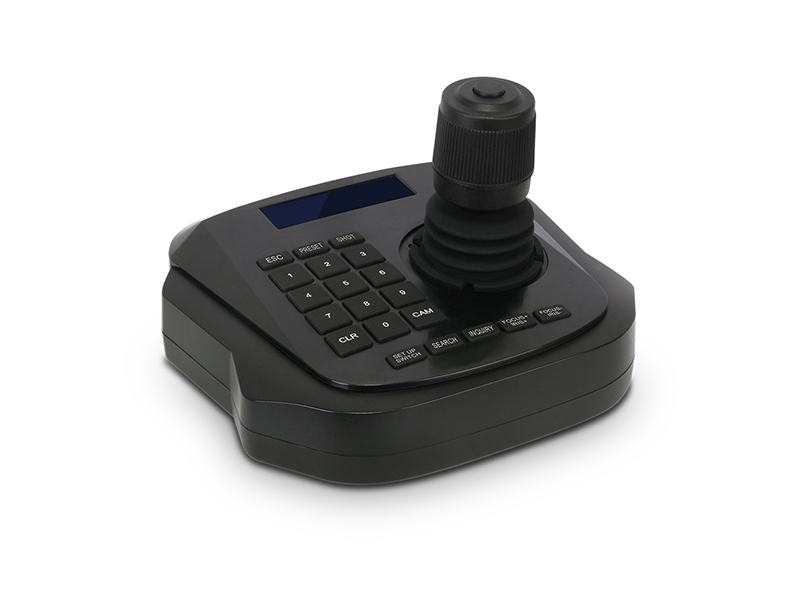
Observation and remote teaching sessions need views that can be rescheduled at short notice. Adjusting several angles by hand is not realistic, so concentrate PTZ control on one keyboard operated from the lectern or the control room.
Course material is usually kept by term, so capacity and export method need deciding at the design stage, otherwise a finished recording turns out not to hand over to the platform directly.
Camera Positions and Equipment
Pair positions with capture devices by signal form, and write each source's interface type onto the floor plan first.
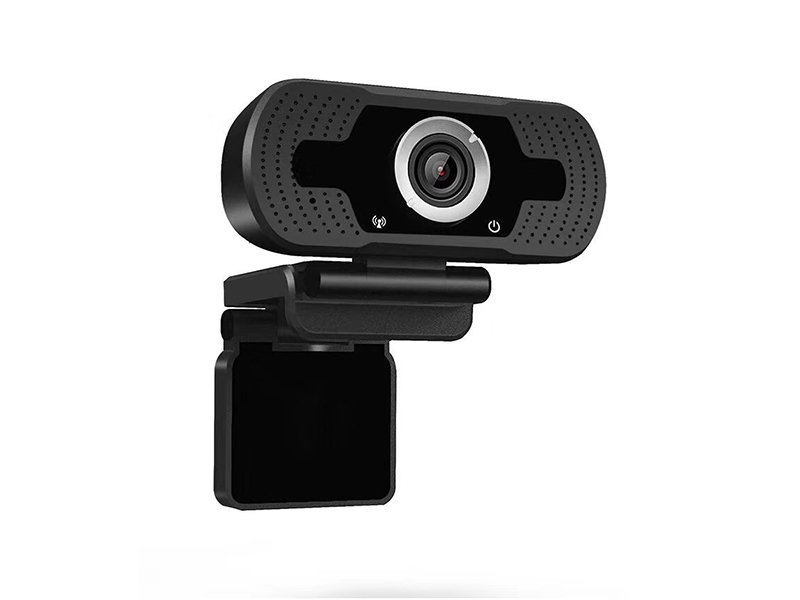
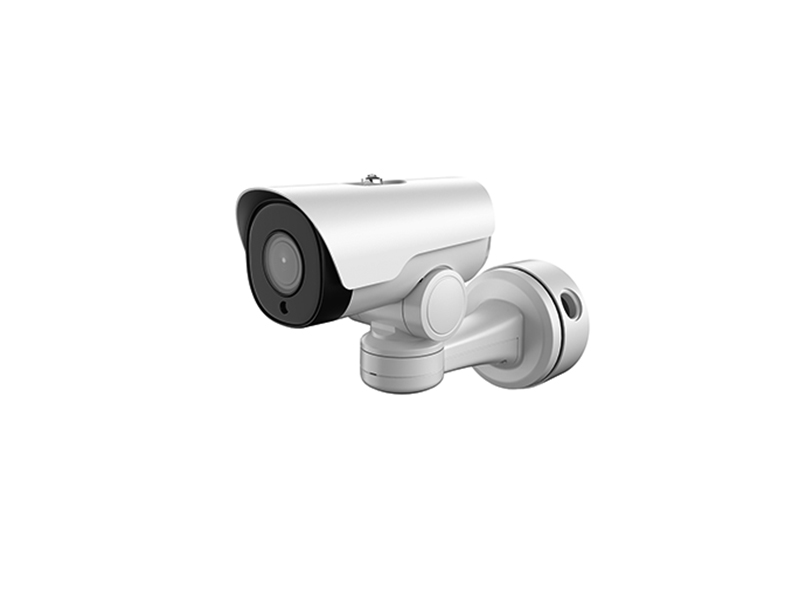
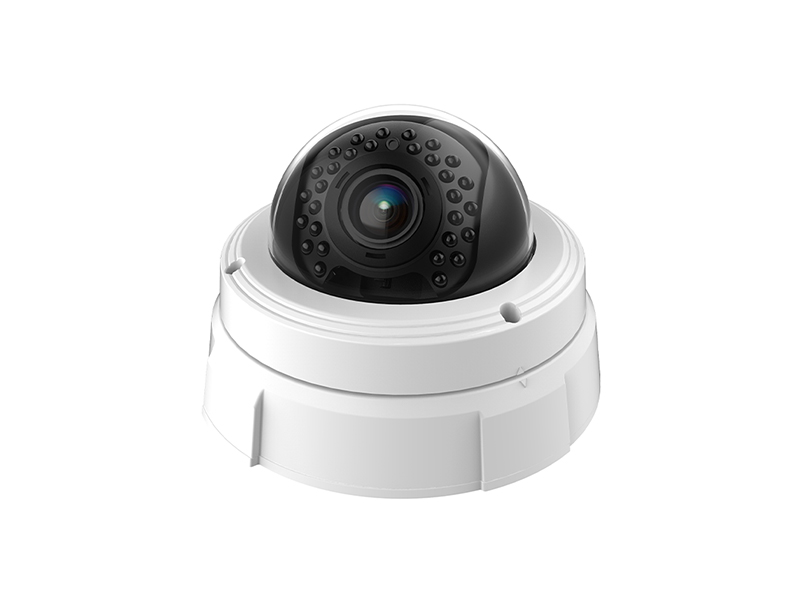
- Teacher wide shot and close-up: network camera or USB UVC camera, with the close-up kept out of direct ceiling light
- Student views: wide-angle position at the back of the room, watching window backlight and projection-screen reflection
- Courseware: lectern PC HDMI output straight into the video capture card, never filmed off the screen
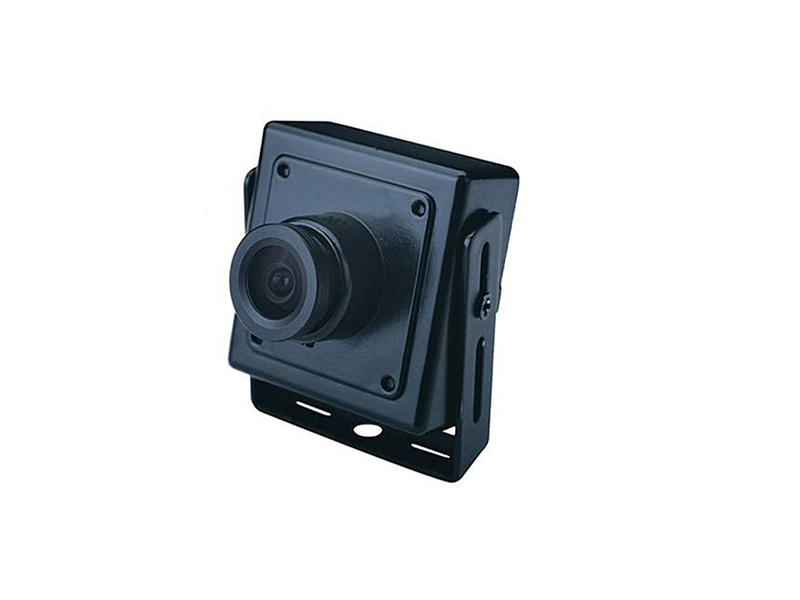
- Training station detail: miniature camera added directly above the fixture or instrument to show hand operation
- Recording host side: HDMI to USB 3.0 capture card, allocated between 1080P and 4K according to channel count
- Control side: IP PTZ control keyboard, with a touchscreen model handling both preset recall and view switching
Wiring and Switching Practice
Commission a recording chain from source to end: confirm each channel works alone, then synchronized switching, then write the recording plan.
| Step | Practice | Equipment used |
|---|---|---|
| Analog sources | Machine tool or legacy instrument analog output passes through a video converter to HDMI before the capture card, with no multi-stage adaptation at the host side | Video converter, capture card |
| PTZ control | Program presets in advance and write them into the keyboard, numbering teacher, student and close-up positions separately | PTZ control keyboard |
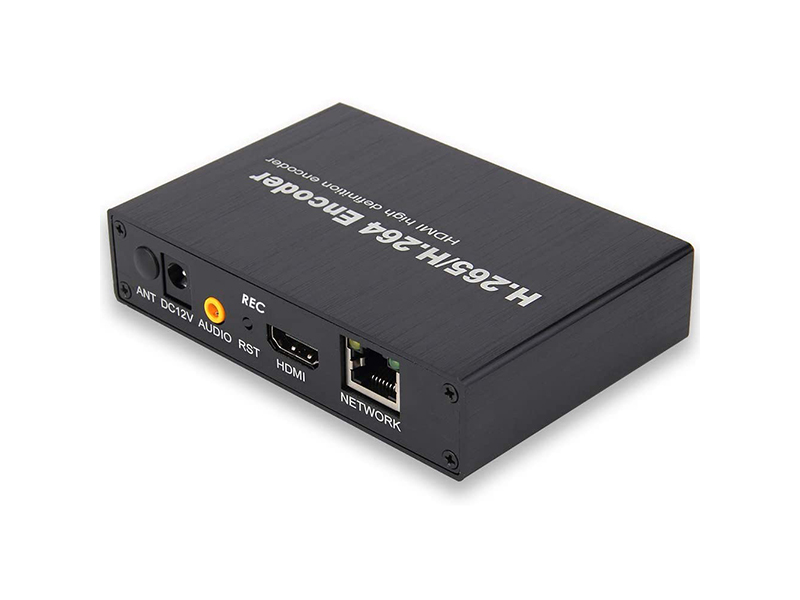
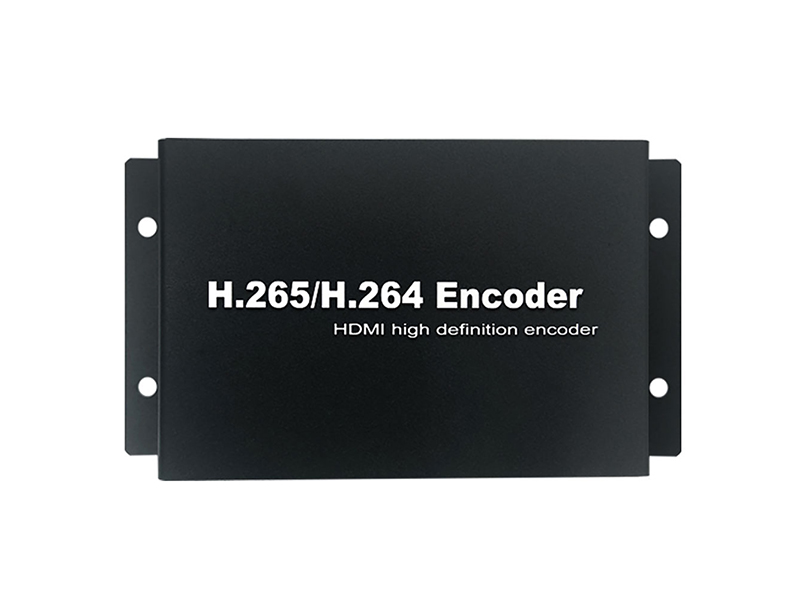
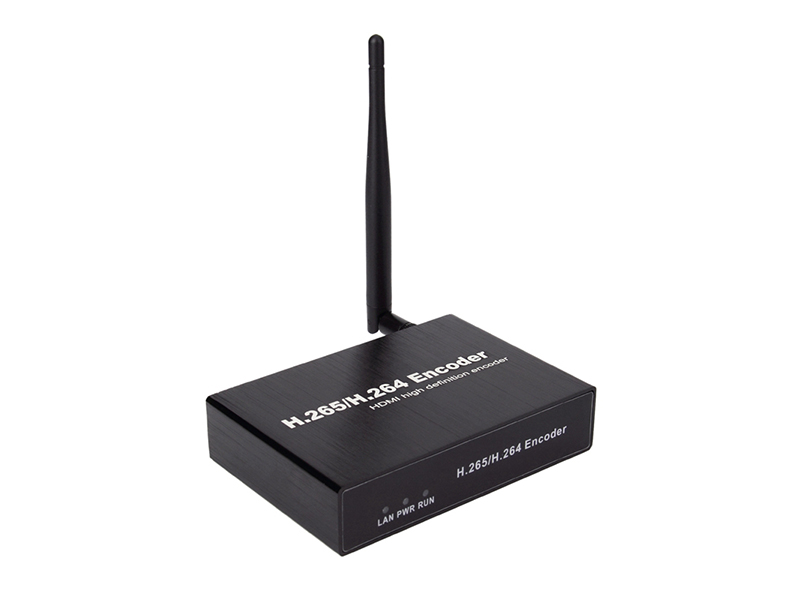
| Network positions | Cameras cable into the teaching network, and the video encoder sends HDMI sources to the platform on ports separate from the recording host | Video encoder |
| Display wall | Feed the observation room display wall from a converter or HDMI extender, on the same source as the recorded content | HDMI extender |
| Cable management | Run every cable in ducts numbered by position and leave access boxes at interfaces, so mid-term equipment swaps stay possible | Video and audio accessories |
Recording Bandwidth and Material Storage
When a recording host takes several views at once, capture bandwidth becomes the bottleneck before network bitrate does. The estimate of 2 to 4 Mbps per 1080P channel applies only to network transport; on the capture card side over USB 3.0, budget uncompressed bandwidth, and do not hang several capture devices from one hub. On storage, keep finished recordings and source material apart: store source by course number on the term server, push finished files to the teaching platform, and retain a local copy until term end. Synchronisation of courseware and camera views relies on host timestamps, so point the recording host and the cameras at one clock source when they join the network; when one host serves two classrooms, write recording plans grouped by room and leave overlap in break periods so no recording gap appears.
- Fix capture resolution so automatic switching never forces recording software to re-detect a device
- Write classroom and position number into channel titles and keep export naming on one rule
- Authorize the PTZ control keyboard only at the console, so nobody changes angle during a lesson
- Send remote observers a separate low-bitrate stream instead of sharing the recording's priority
During-Lesson Duty and Degraded Operation
Duty during a lesson changes no parameters: resolution, frame rate and PTZ presets are set before class starts, and only view switching happens during it. Keep one operator beside the recording host for source switching and file checks so the teacher never carries lecturing and parameter work at the same time. When one view fails, degrade deliberately: bring the spare position in first, or drop that path at the switcher so the remaining views keep recording, and re-shoot only that section afterwards.
Naming and save locations of all course files stay consistent across the term, and capture card and recording software versions are held for the term with upgrades scheduled in the holidays. When a remote teaching session needs one view sent outside, take that low-bitrate path from an encoder rather than sharing the capture port used for recording, so neither side starves bandwidth and stalls the courseware image.
- Record a five-minute test file before class and replay it to confirm picture and sound line up
- Authorize the PTZ control keyboard only at the console, so a knock cannot change the angle
- Switch a failing channel out before troubleshooting so the lesson recording is not interrupted
- After export, verify file count and duration before deleting the classroom's local copy
- Re-register the source list after a training room change, flagging paths whose interface changed
Delivery and After-Sales
Delivery produces a source list, interface list and equipment list per classroom, confirming image, switching response and recording result channel by channel, with one complete trial lesson recorded before classes start. Assembly and full inspection happen on our own production line, and keyboard and capture card silk-screen marking plus default firmware parameters can be adapted to the teaching environment. Tell us the recording software name, the interface types of equipment already in the room, and the position count; send this to info@vctcctv.com and we can ship sample units with a compatibility list for on-site trial, or call +86-755-28146081 directly.