
Room Types and Signal Paths
Meeting projects fall into three link types by room size. A small room for four to eight people usually needs one desktop camera position and the room's own display. A training-scale conference room needs a speaker position, a wide-shot position and a document position, three sources or more. In a room whose display sits on the other side of a wall or a floor, the signal has to be transported before resolution is discussed at all. Fix the path first, then choose interface forms, and avoid the extra step of extending before converting.
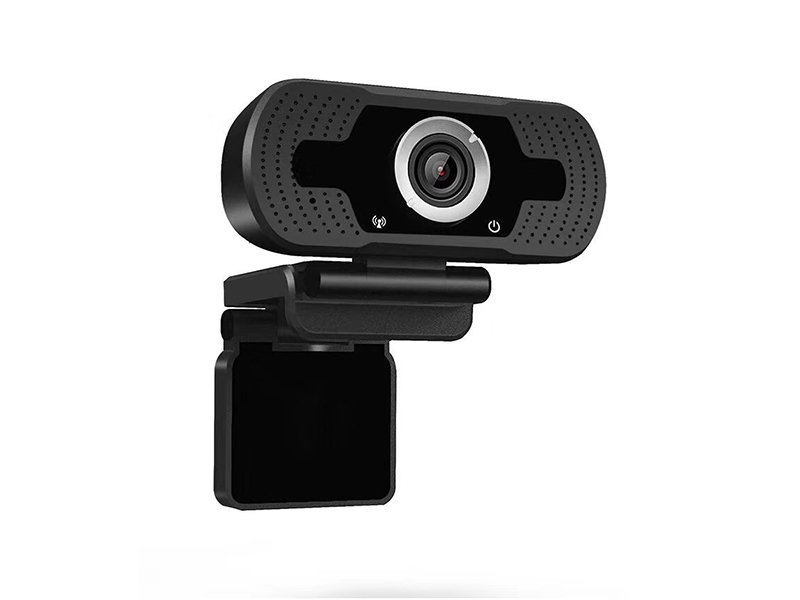
The connection to the meeting PC is about USB. Models using the UVC protocol appear inside third-party conferencing software as a standard camera, with no extra driver and no dependence on the operating system version, so moving a unit between a classroom and an office only means reselecting the device. When HDMI on the display side exceeds the reliable length of the cable, switch to wireless extension or encode onto the network instead of stretching distance with passive adapters, which bring black flashes and snow at high resolutions.
Where several rooms share equipment, write the owning room name into every view on the encoders and the recorder, so material is retrieved by room afterwards instead of replaying each channel one by one.
Camera Positions and Equipment
Position count follows the meeting format. One channel is enough when the speaking position is fixed; round-table discussion and taught sessions need wide shots and a document position.
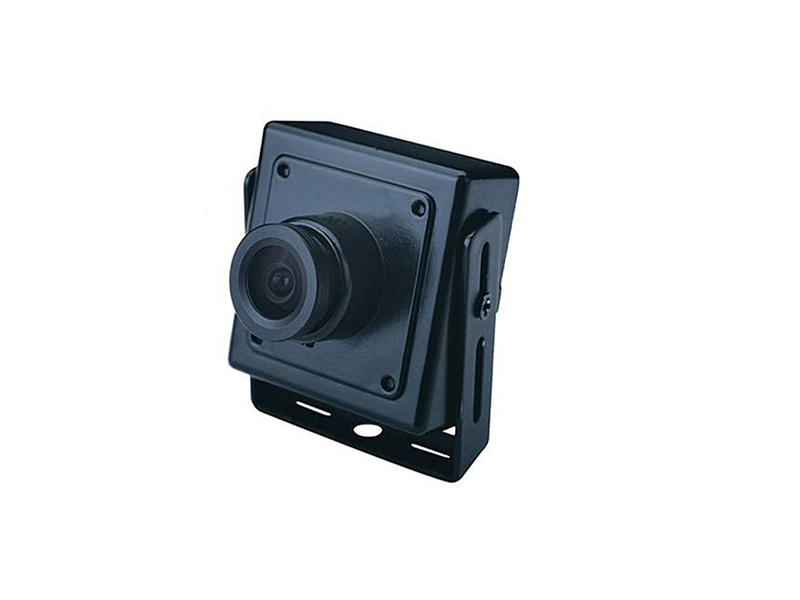
- Desktop and wall positions: 1080P USB UVC camera, focal length chosen by room depth, because too wide bulges the shoulders of the front row
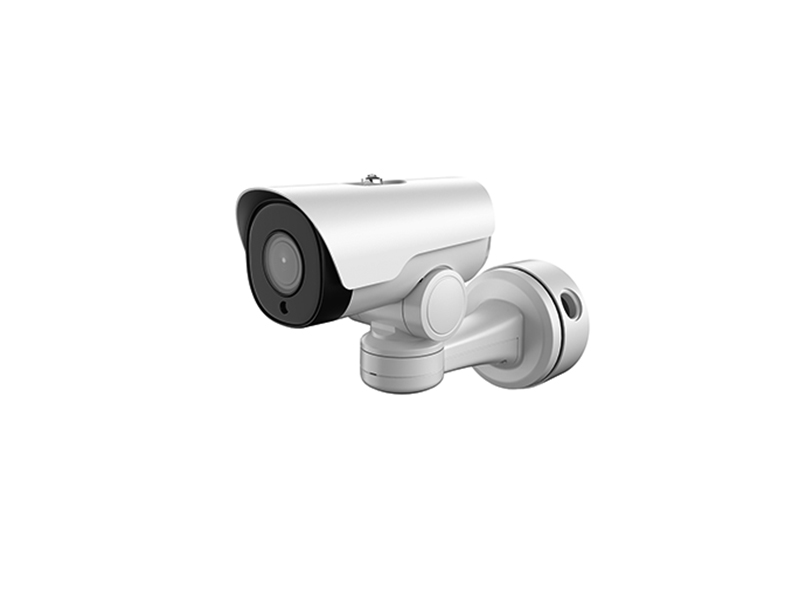
- Wide shots and rear positions: network camera on network-cable power, independent of the meeting PC, so recording continues when the host freezes
- Local and adjacent-room display: HDMI extender; for wireless models, verify the rated 200 m against actual obstruction and wall attenuation on site
- Video into the PC: HDMI to USB 3.0 video capture card, in 1080P or 4K, matched to the real resolution of each position
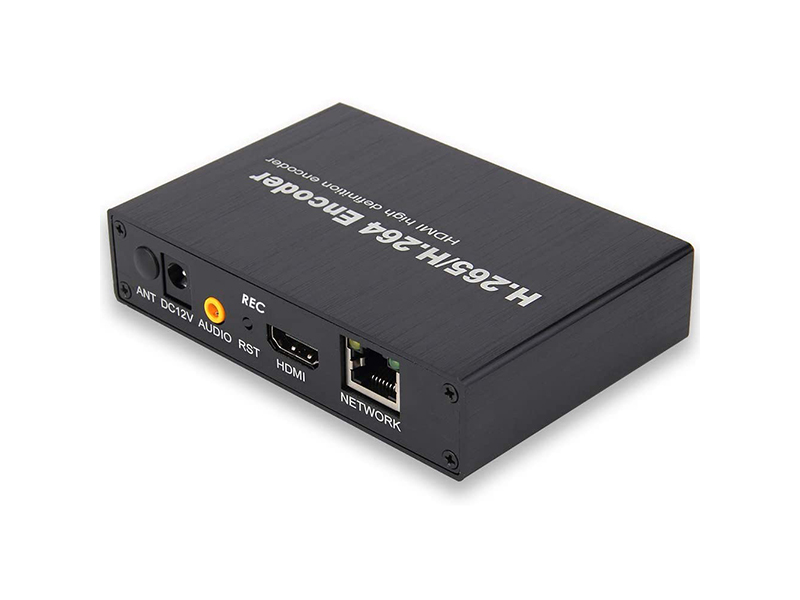
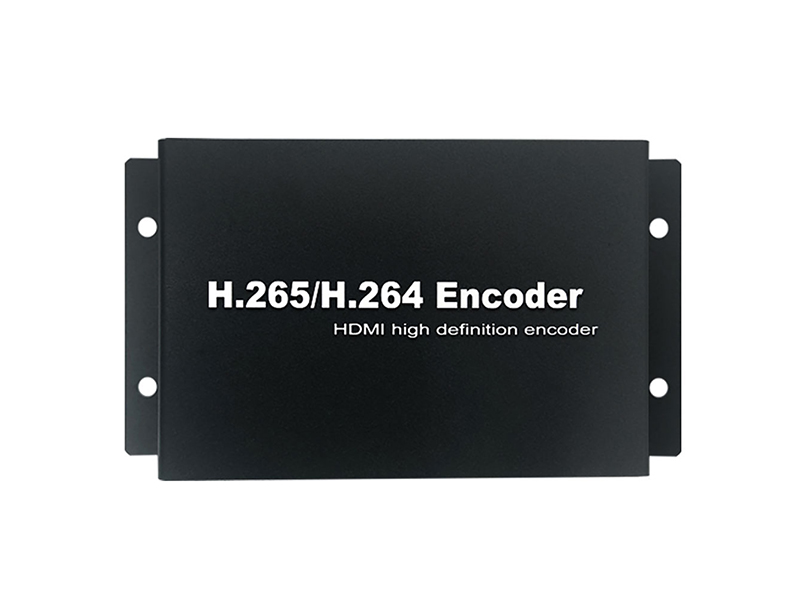
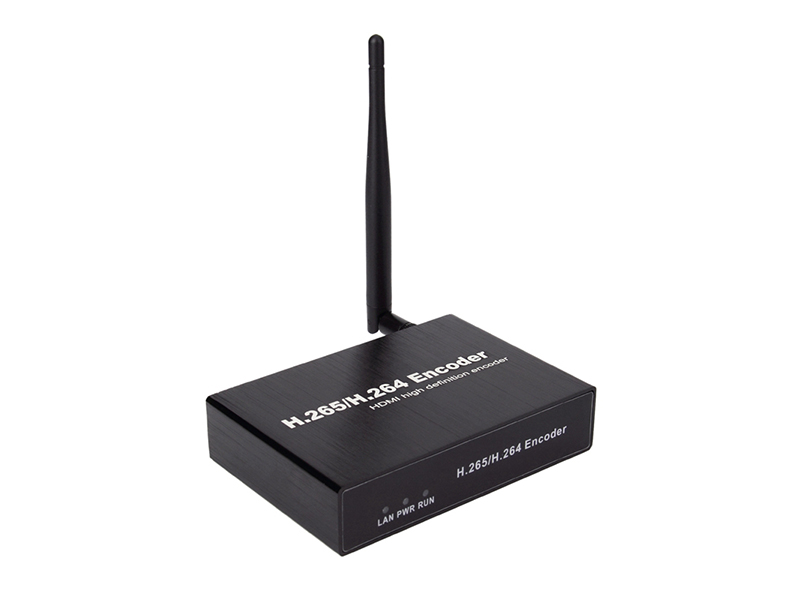
- Uplink to the platform: HDMI network video encoder; the PoE version removes a power drop for a whole room
- Plan audio pickup and reinforcement separately; the video side only handles image capture, loop-out and recording
Wiring and Installation Practice
Draw long and short runs, active and passive parts and power methods on the floor plan before calculating cable length, so no distance is made up with adapters on site.
| Step | Practice | Equipment used |
|---|---|---|
| Desktop position wiring | Keep USB cable within 3 m; beyond that use an active cable or move the capture card to the desk wiring point | USB camera, video capture card |
| Cross-room display | Mount the wireless transmitter and receiver facing each other, keeping metal cabinets, cable tray and dense studs out of the path | HDMI extender |
| Device recognition | Fix the capture card channel number and set the default camera in the conferencing software so a newly plugged device cannot switch it | Capture card, UVC camera |
| Recording and display in parallel | Feed the same HDMI to the loop-out display first, then into the PC through the capture card, so neither path takes over the other | Video capture card |
| Platform uplink | Set separate ports and bitrate ceilings for the encoder stream and the software's own outbound traffic to avoid contention on one network port | Video encoder |
Streams, Storage and Desktop Configuration
Meeting content is kept on two paths: one recorded locally on the meeting PC for instant replay and clipping, and one pushed by the encoder to the recorder for central management, which suits several rooms saved together. Estimate 1080P at 2 to 4 Mbps per channel; with four rooms uplinking at once the access side should run gigabit, and trunk and office network should be segmented so video does not consume shared bandwidth from daily work.
- Fix encoding resolution and frame rate on the encoder page; never let the conferencing software rescale
- Name recorder channel titles by room, so searching material does not rely on guessing from the timeline
- When encoder and camera sit on two subnets, confirm first that the platform can add the device to its list
- For rooms that never power down, prefer PoE models to cut adapter count and heat
Pre-Meeting Checks and Common Field Issues
Run four checks before a meeting: confirm every position's image is visible on both the capture card and in the software, confirm the display end carries the same source, confirm recording or the encoder is streaming, and confirm uplink bandwidth is not occupied by other applications. Print these on a checklist card by the room door so users run it themselves instead of waiting for installation staff. The cases below appear most often in the field, and each fix is tied directly to the equipment form.
- PC sees the capture card as an unknown device: use a different USB port, and avoid docking stations with hub function and very long USB extension cable
- Image too dark or washed out: lock exposure and white balance instead of leaving them automatic, so lighting changes do not swing the picture back and forth
- Occasional black flashes on cross-room display: shorten the wireless link or encode onto the network, and check metal obstruction and tray in between
- Color mismatch across channels: standardize model and parameters and run white balance once per channel rather than grading in software afterwards
- Material missing after a meeting: write the room name into recorder channel titles, because searching by channel beats scrolling by time
Delivery and After-Sales
Handover delivers a position list, a cable schedule and an equipment list per room, with confirmation room by room of the device name the software sees, the display-side image and the recording result, then transfers after three consecutive meetings with no dropouts. Products ship to Europe, the Americas, the Middle East and South-East Asia, with chassis silk-screen marking and firmware parameters preset to customer requirements. Tell us the conferencing software name, the PC operating system version, room depth and where display equipment sits; send this to info@vctcctv.com and we can ship a sample for compatibility verification before volume orders, or call +86-755-28146081 directly.